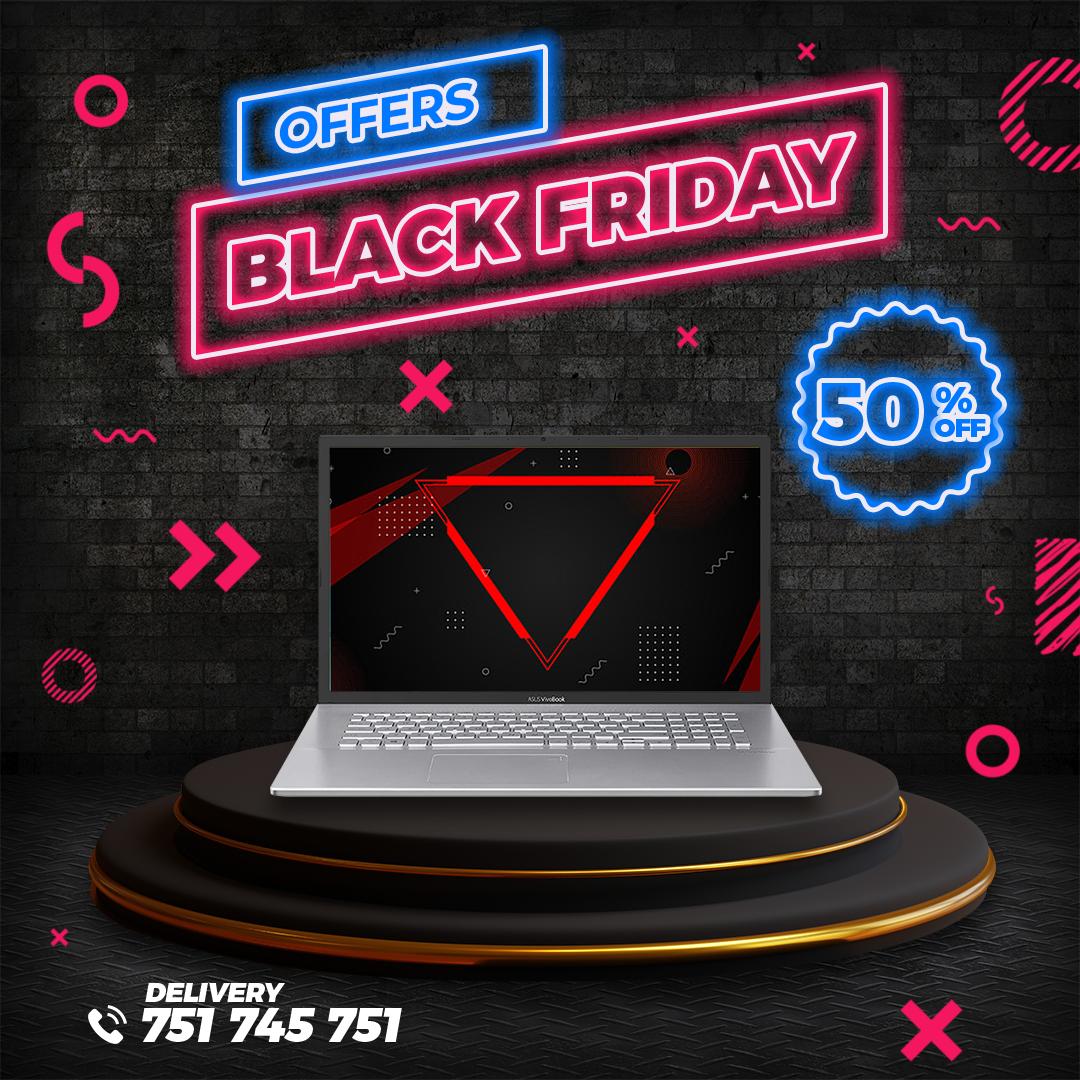
Looking for a sleek and effective way to promote the laptops in your store or your latest tech deals? Our collection of Flyer de laptop en PSD offers a fantastic solution! These professionally designed templates are available in PSD format, making them incredibly easy to customize in Adobe Photoshop. Start creating eye-catching flyers to attract tech-savvy customers and showcase your laptop offerings.
Why Choose an Editable PSD Template?
Opting for a Flyer de laptop en PSD provides you with complete creative control over your promotional materials. PSD files, the native format for Adobe Photoshop, allow you to effortlessly modify text, colors, incorporate your branding, highlight specific laptop features, and adjust layouts to perfectly match your store’s image and the specific models or discounts you want to promote. Using an editable PSD template saves you valuable time and money compared to hiring a designer for every campaign, while still providing a professional and impactful visual representation of your laptop selection.
Main Features of This PSD Template
Our Flyer de laptop en PSD templates come with a range of user-friendly features:
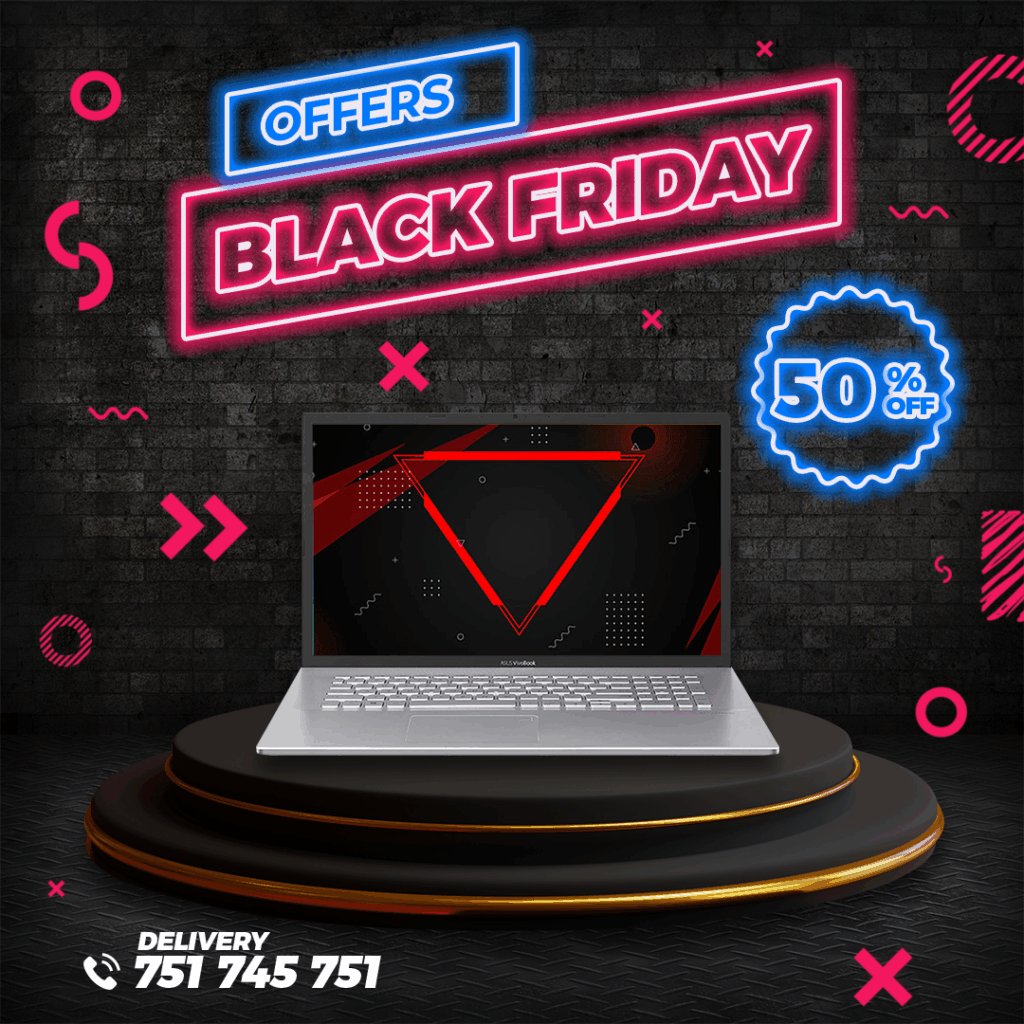
- Modern Laptop Showcase Designs: Featuring a variety of clean and contemporary layouts specifically designed to promote laptops, tech gadgets, and related sales events.
- Fully Layered PSD Files: Each design element, including laptop images, text fields for specifications and prices, promotional banners, graphic elements, and background elements, is organized on separate, clearly labeled layers for easy identification and modification within Photoshop.
- Editable Text Layers: Easily update all text elements with laptop model names, key specifications (e.g., processor, RAM, storage), prices, discounts, special offers, store information, and compelling calls to action.
- Image Placeholders: Simple-to-use placeholders allow you to seamlessly insert your own high-quality photos of the laptops you are promoting.
- Print-Ready Resolution: Templates are often designed with high resolution settings (typically 300 DPI) to ensure crisp and professional printing results for flyers distributed in-store or via direct mail.
- RGB Color Mode: Files are typically set up in RGB color mode for optimal digital display, but can be easily converted to CMYK for printing if needed.
- Bleed and Guides: Many templates include bleed areas and guides to ensure proper printing and trimming.
- Font Link Included: A dedicated text file within the download provides a direct link to download the specific fonts used in the design (fonts are not embedded in the PSD file due to licensing restrictions).
- Font Installation Tutorial Link: For users who are new to Photoshop or need a refresher, we’ve included a link to a helpful video tutorial on how to install fonts for use in Photoshop: https://www.youtube.com/watch?v=XE5jgJ0KnwA (Opens in a new tab).
How to Personalize Your PSD Template
Customizing your Flyer de laptop en PSD template in Adobe Photoshop is a straightforward process. Follow these simple steps to create your perfect laptop promotion:
Download the File:
Download the ZIP file containing the Flyer de laptop en PSD template and the accompanying font link file.
Unzip the File:
Extract the contents of the ZIP file to access the .PSD template and the text file with the font link.
Open the PSD File:
Open the .PSD file using Adobe Photoshop on your computer.
Install the Font:
Open the .txt file containing the font link. Follow the provided link to download and install the fonts used in the template. If you need assistance, refer to our font installation tutorial: https://www.youtube.com/watch?v=XE5jgJ0KnwA (Opens in a new tab). Ensure the fonts are installed before proceeding with editing.
Edit the Layers and Texts:
In Photoshop, navigate to the “Layers” panel. Locate the text layers you wish to modify and use the Type Tool (T) to input laptop model names, specifications, prices, discounts, store information, and compelling calls to action (e.g., “Shop Now,” “Limited Stock,” “Special Offer!”). Adjust the font size, color, and alignment to make the key information stand out. Locate the image placeholders and use the “Place” command (File > Place) to insert high-quality photos of the laptops you are promoting. Resize and reposition them within the designated areas. Feel free to adjust colors of other design elements and incorporate your store’s logo to match your branding.
Save and Export:
Once you have customized your Flyer de laptop en PSD template:
- Save: Save your work as a
.PSDfile to retain all editable layers for future modifications. - Export for Print: Go to “File” > “Save As” and choose a print-ready format such as
.PDF. Ensure your color settings are CMYK and that bleed and trim marks are included if required by your printing service. - Export for Digital Sharing: Go to “File” > “Export” > “Save for Web (Legacy)” or “File” > “Export As” and choose a web-friendly format like
.JPEGor.PNG. Optimize the image size and quality for online sharing on social media, your website, and email marketing campaigns.
Tips for Creating Effective Laptop Flyers
- Install Fonts First: Always install the provided fonts before opening the PSD file to ensure the text displays correctly.
- Use High-Quality Laptop Photos: Showcase the laptops you’re promoting with clear and professional images.
- Clearly Highlight Key Specifications and Discounts: Make sure the most important features and price reductions are easily visible.
- Include Essential Store Information: Display your store’s name, address, website, and contact details clearly.
- Use Strong Calls to Action: Encourage customers to visit your store or website with clear calls to action like “Shop Now,” “Visit Our Store,” or “Learn More Online!”
- Maintain Brand Consistency: Use your store’s colors, logo, and overall visual style for brand recognition.
- Proofread Carefully: Double-check all text for any errors before printing or distributing.
Frequently Asked Questions
- Do I need Adobe Photoshop to edit these templates? Yes, our laptop flyer templates are provided in PSD format and require Adobe Photoshop for editing.
- Are the laptop images included in the download? The inclusion of laptop images may vary depending on the template. Placeholders are usually provided for easy insertion of your own photos.
- Are the fonts included in the download? No, due to licensing restrictions, the fonts are not included directly in the PSD file. However, a text file with a download link is provided.
- What if I don’t know how to install fonts? We have included a link to a helpful video tutorial to guide you through the font installation process: https://www.youtube.com/watch?v=XE5jgJ0KnwA (Opens in a new tab).
- What color mode should I use? RGB is generally best for digital, while CMYK is recommended for printing. You can convert between modes in Photoshop.
Download Your Laptop Flyer PSD and Boost Your Sales!
Promote your laptop offerings effectively with our professionally designed and easily editable PSD templates. Download your favorite template now and start attracting customers to your tech deals!
Download “#0047 Download Editable Laptop Flyer PSD for Photoshop” – Downloaded 0 times –