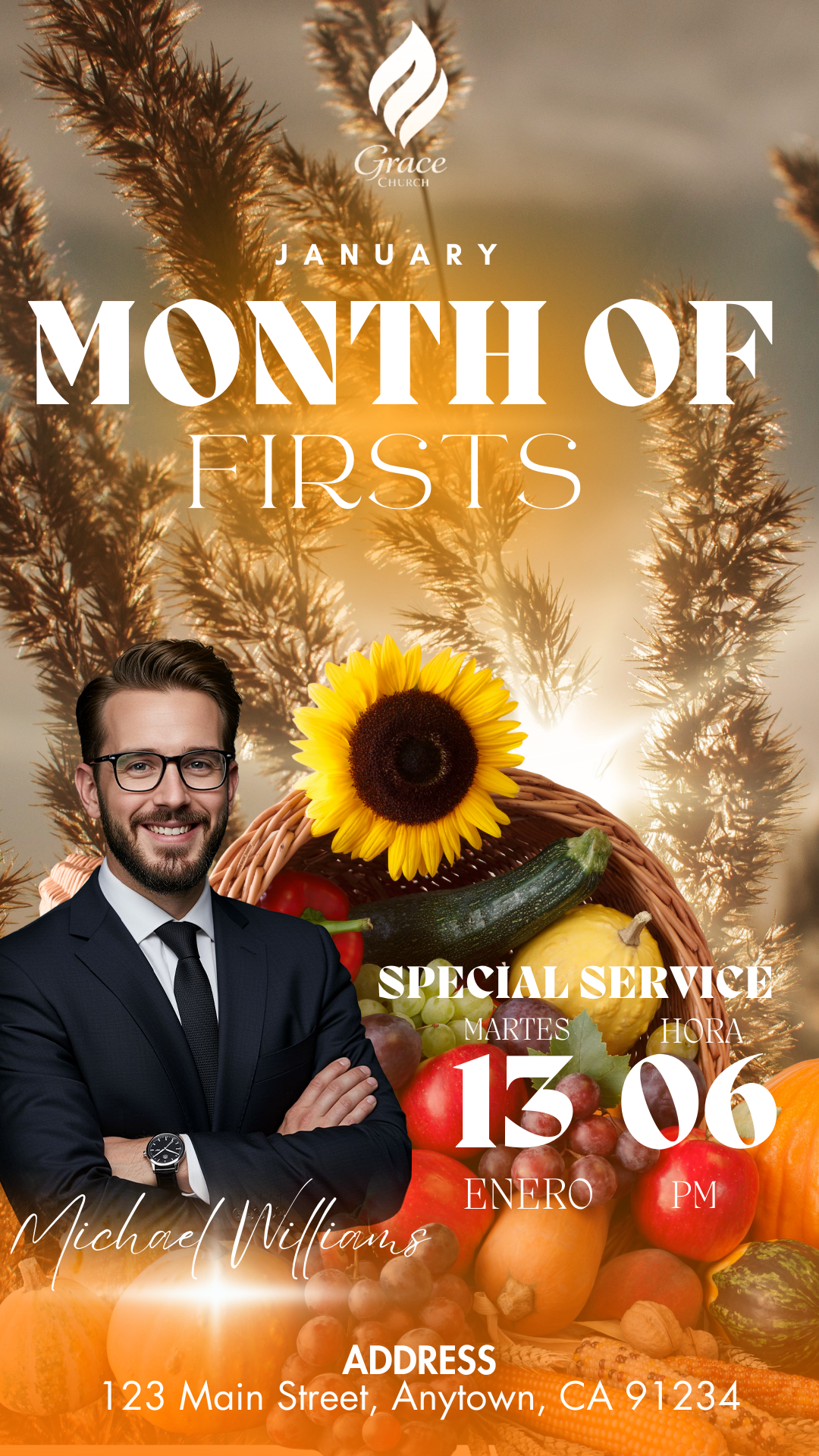
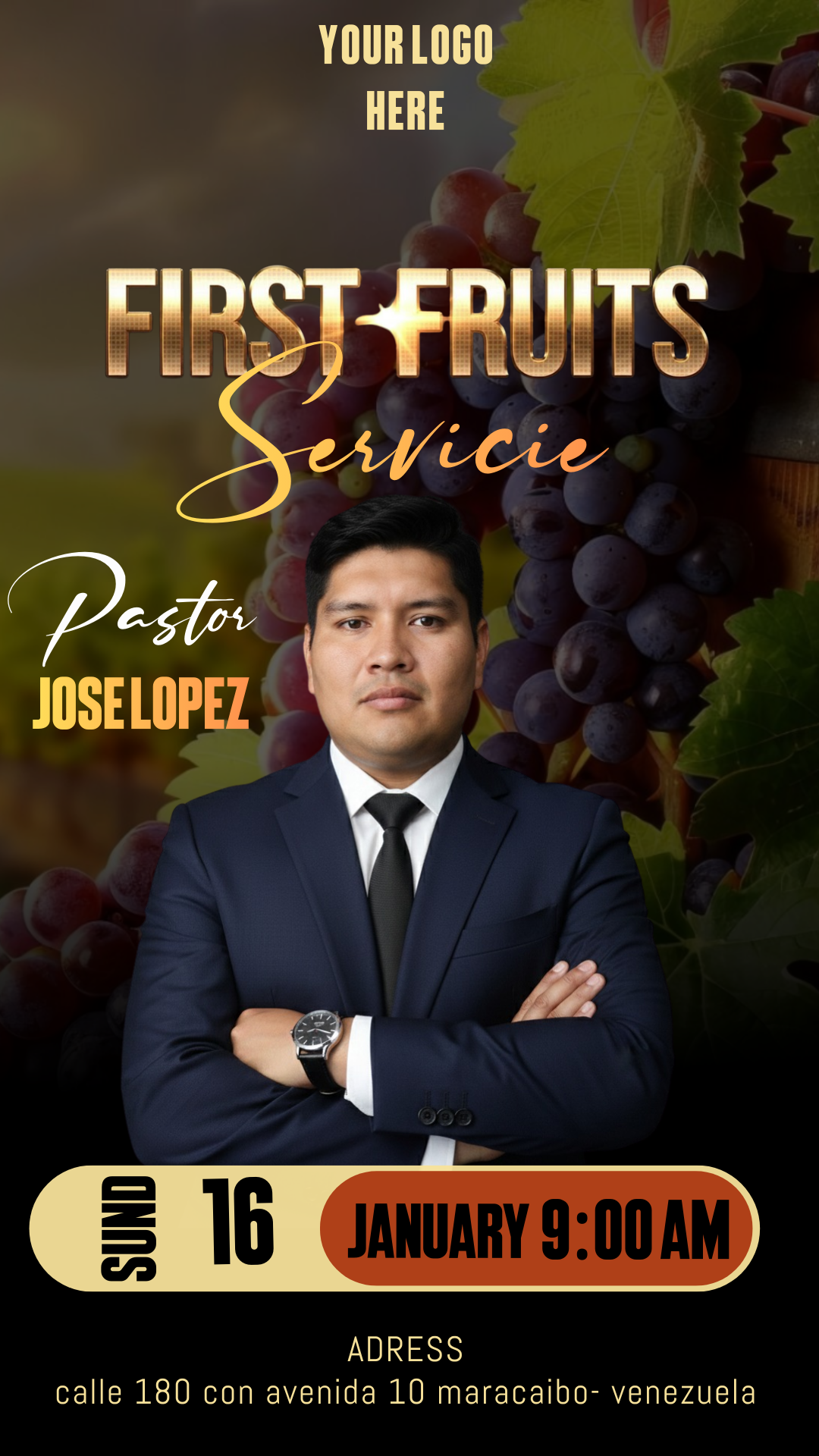
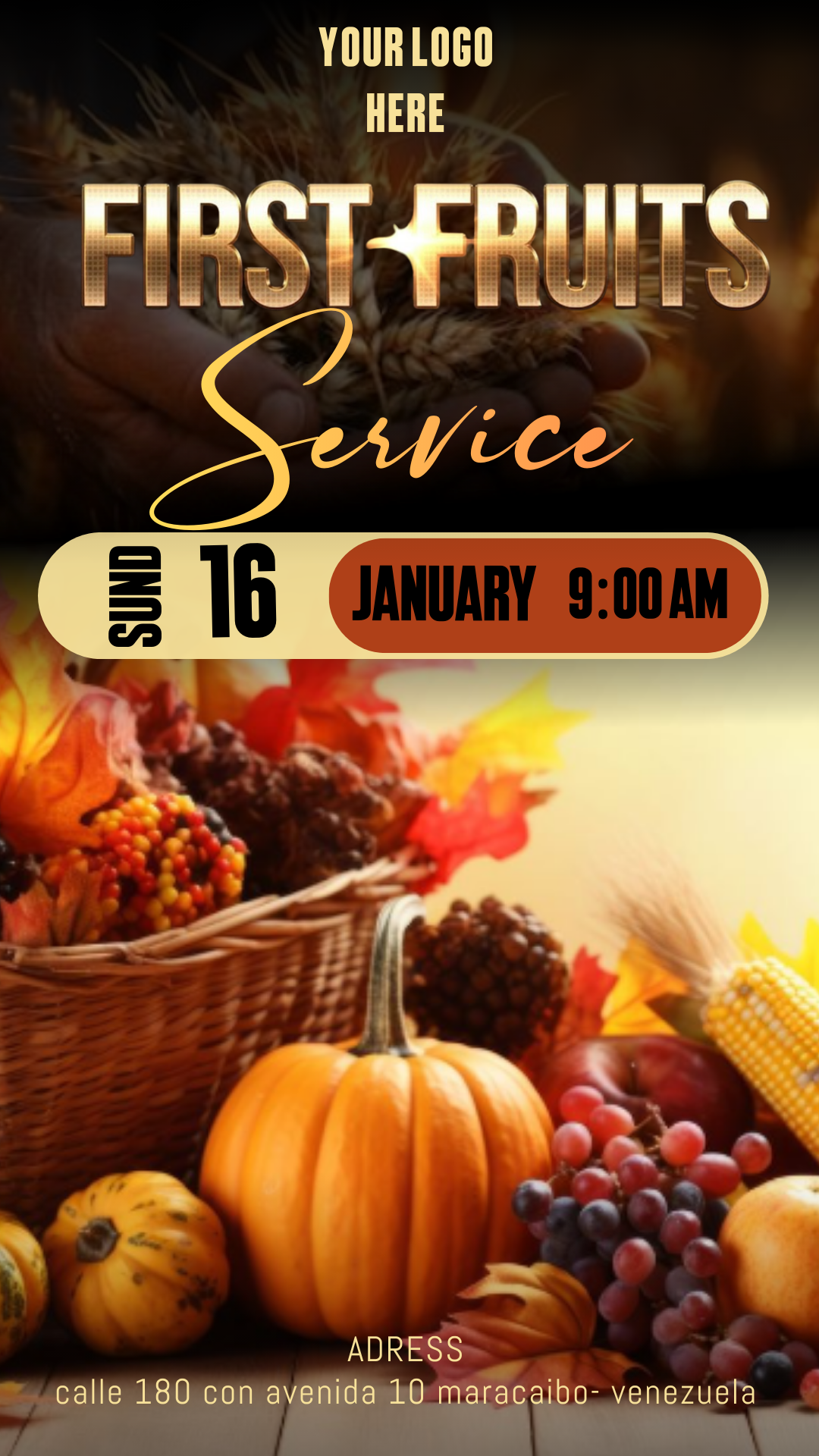
Communicating the importance of a special service requires a clear and visually inspiring message. If you are preparing for a “First Fruits” event, using a first fruits flyer editable in Canva allows you to share the vision with the professional quality it deserves. These templates are specifically designed to invite your community effectively, ensuring your message of gratitude and faith reaches everyone.
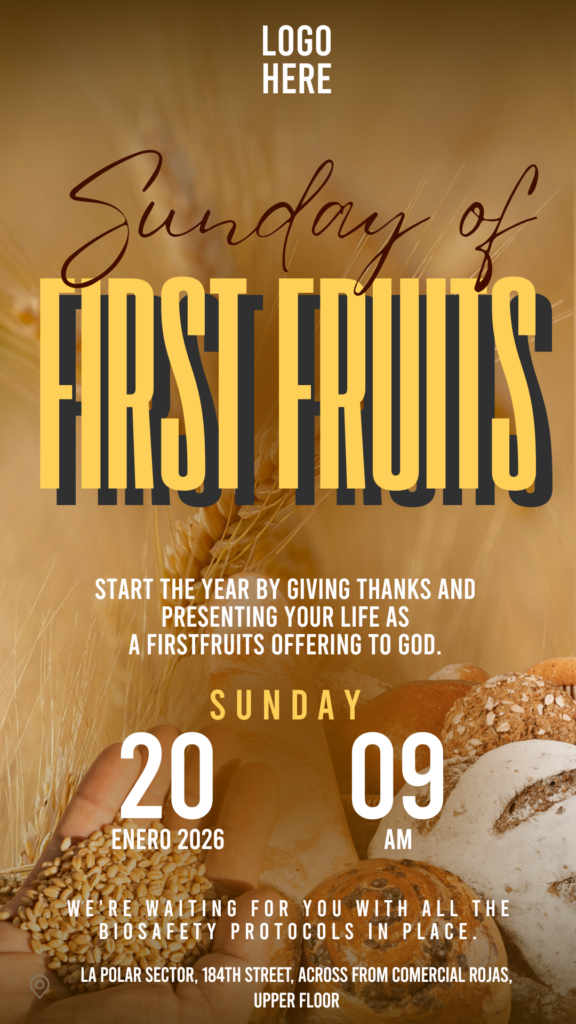
Why Choose a Canva Editable Template? (H3)
Canva is the ultimate platform for those who want high-quality results without technical headaches. By choosing an editable template, you save hours of design work. You can adapt colors, move elements, and update texts in real-time from your computer or mobile device, allowing you to focus on the event’s purpose rather than the technicalities of a design tool.
Main Features of This Canva Template (H3)
Our templates are optimized to provide the perfect balance between aesthetics and functionality:
- Versatile Design: Created specifically for faith-based contexts and gratitude-themed services.
- Dual Formats: The layout works perfectly for high-resolution printing or digital sharing via WhatsApp and social media.
- Dynamic Customization: Every graphic element is adjustable to match your organization’s unique identity.
- Readable Typography: Carefully selected fonts ensure that important details are easy to read on any screen or paper.
How to Personalize Your Template (H3)
The process is intuitive and fast. Follow these steps to get a professional result with your first fruits flyer editable in Canva:
Select the File (H3)
Choose the model that best fits the tone of your service. Once you click the access link, the template will automatically save to your Canva dashboard, ready for you to begin editing.
Open and Edit (H3)
Click on the text boxes to update dates, times, and the event’s address. You can upload your own logo and replace background images if desired. Canva allows you to drag and drop elements to make the design truly reflect your community.
Save, Share, or Print (H3)
When your design is ready, go to the “Share” button. If you are sending it via WhatsApp or social media, download it in PNG or JPG format. If your goal is to hand out physical flyers, select PDF Print to ensure maximum sharpness and quality.
Tips (H3)
To make your flyer more effective, use short and direct phrases. Ensure that the location and time of the event stand out with a contrasting color. A great practice is to include a QR code that leads directly to the location on Google Maps, making it easier for attendees to arrive.
Frequently Asked Questions (H3)
Can I edit the template from my phone? Yes, you can use the Canva app or your mobile browser to make quick changes at any time.
Are there any hidden costs? No, this first fruits flyer editable in Canva is designed with free elements so you don’t have to pay for additional subscriptions if you don’t want to.
What size is the flyer? It comes configured in a standard 1080×1080 px size (ideal for Instagram/Facebook) or letter size for printing, but you can easily resize it within the platform.
Call to Action to Edit (H3)
Don’t wait any longer to create the perfect invitation! Start personalizing your first fruits flyer editable in Canva today and communicate your message with excellence. Click here to open your template and start designing.