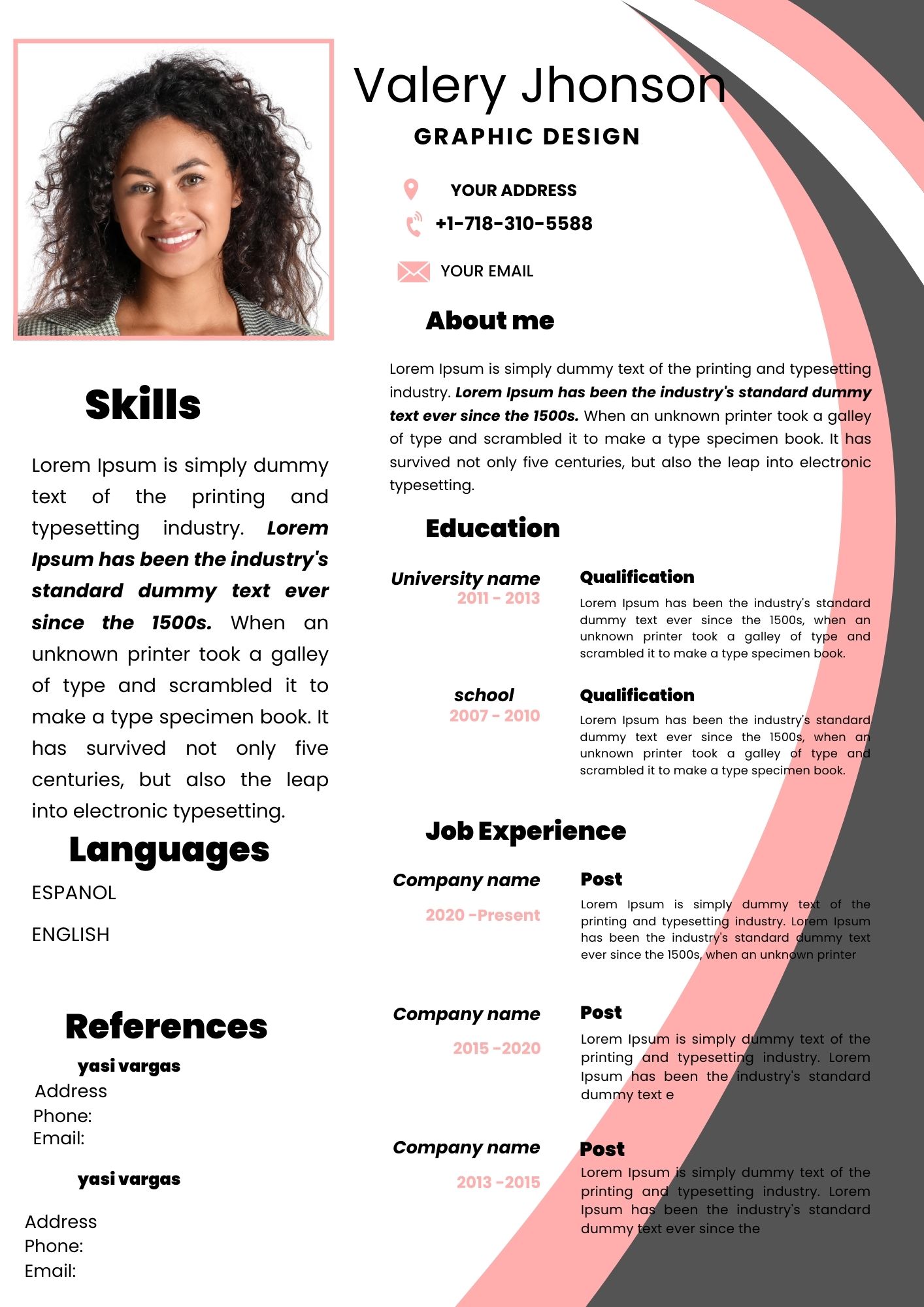
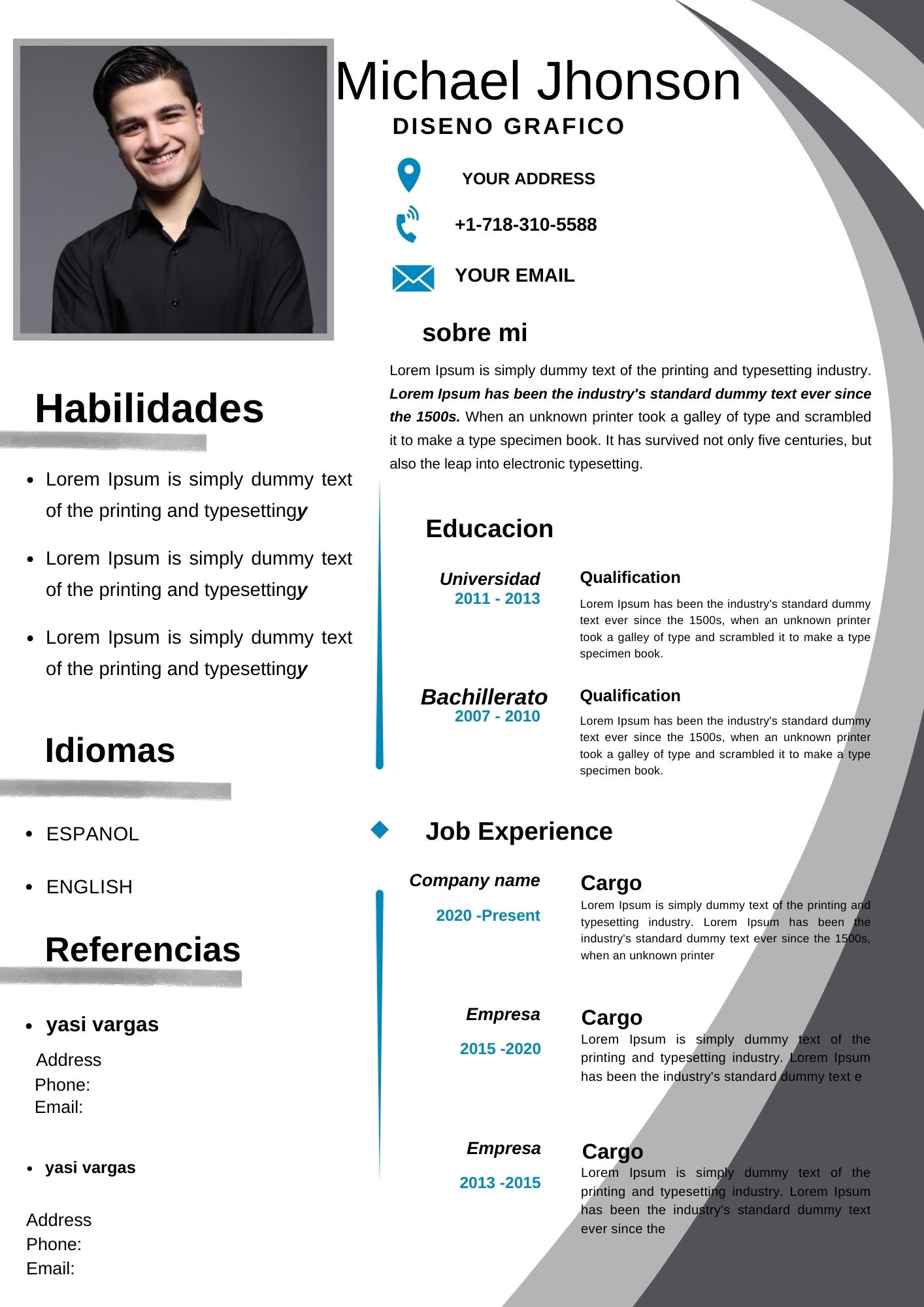
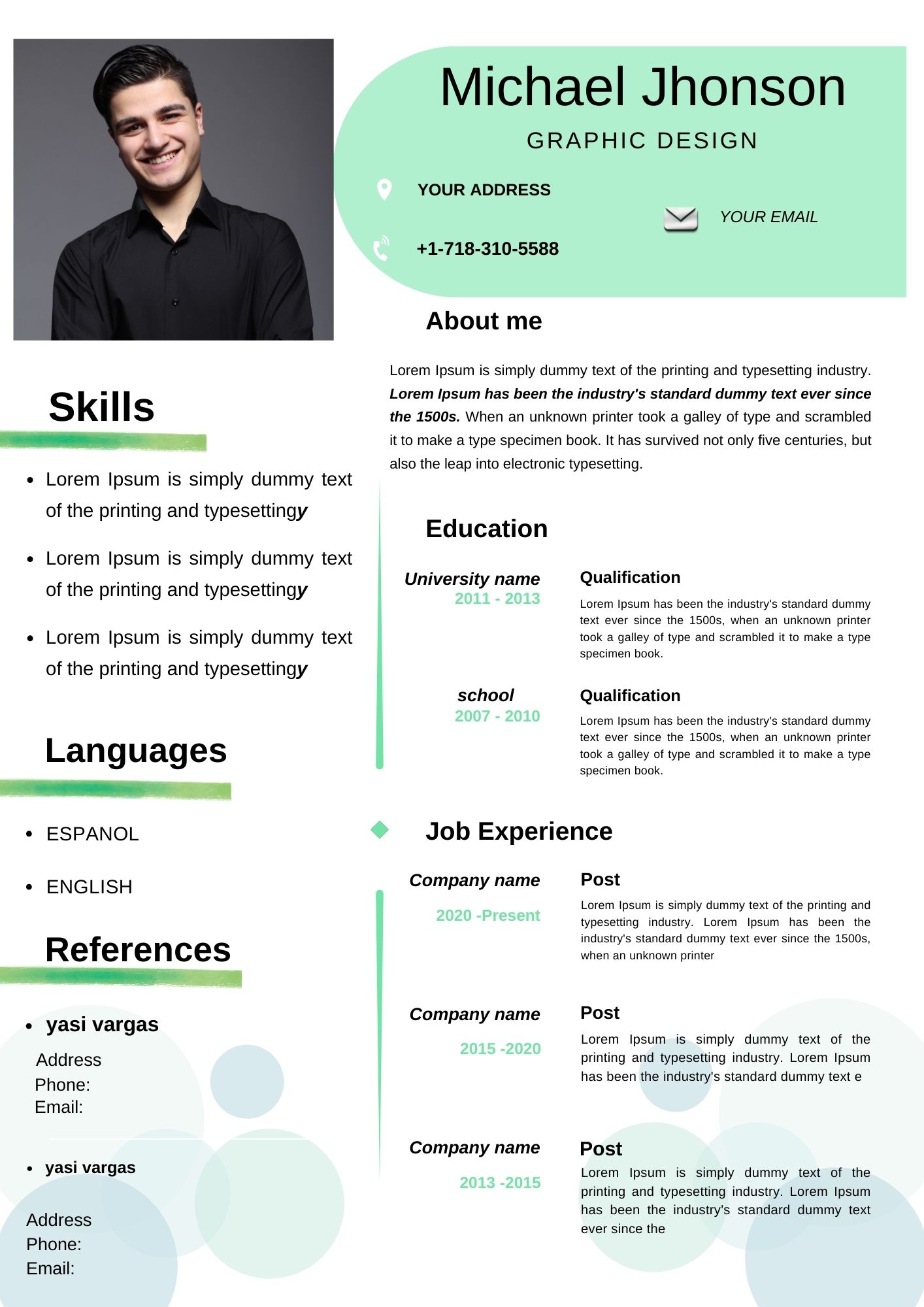
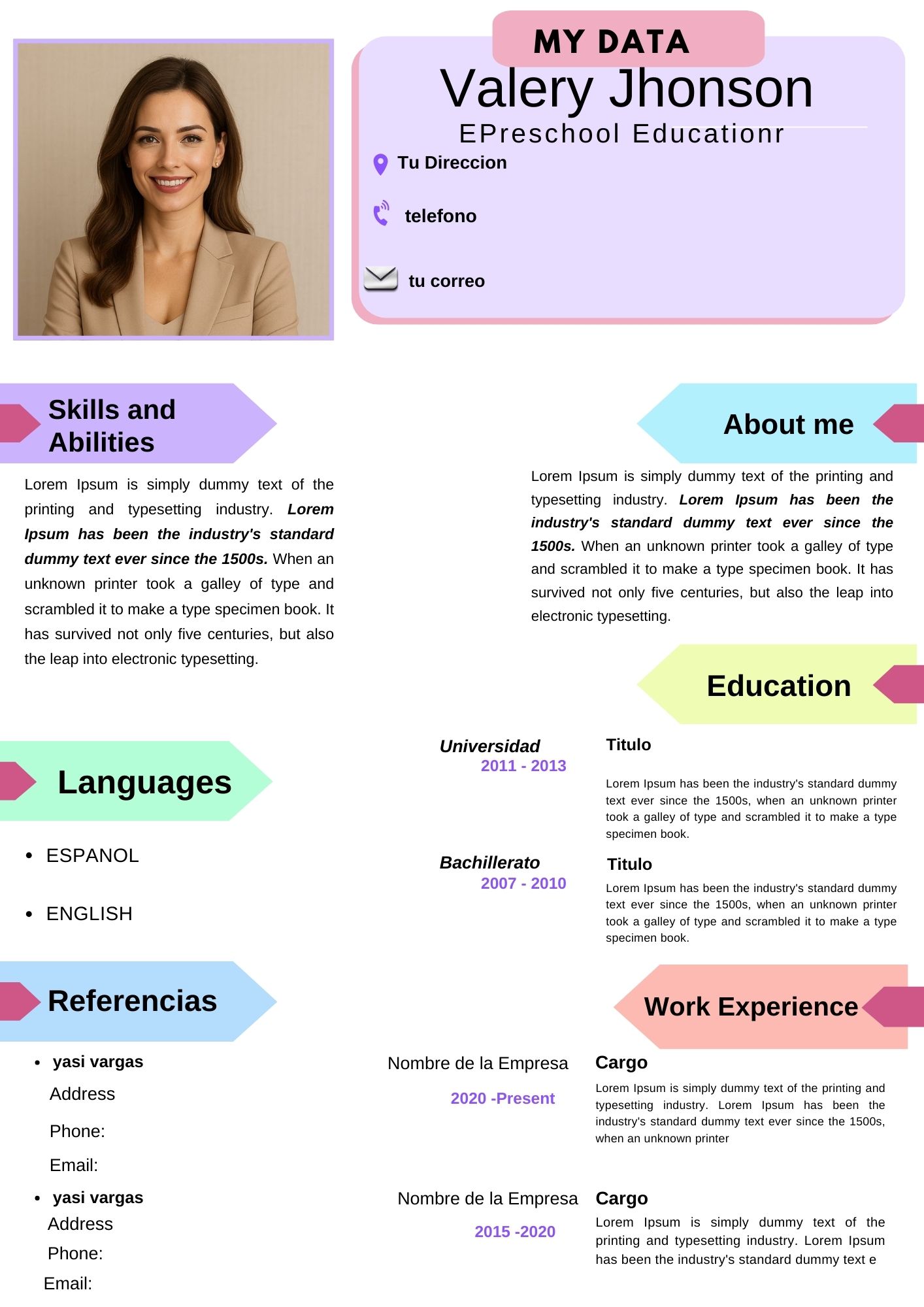
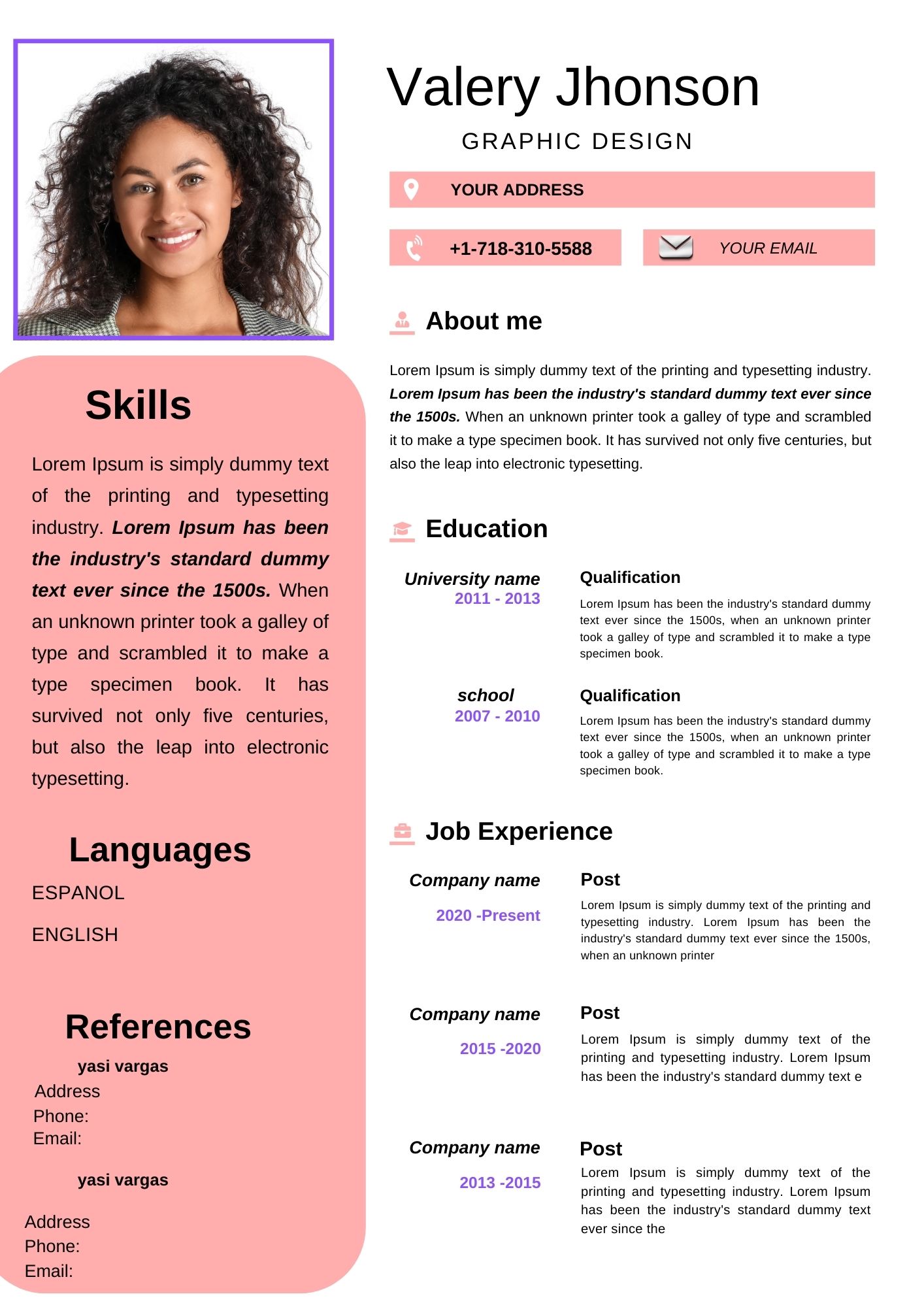
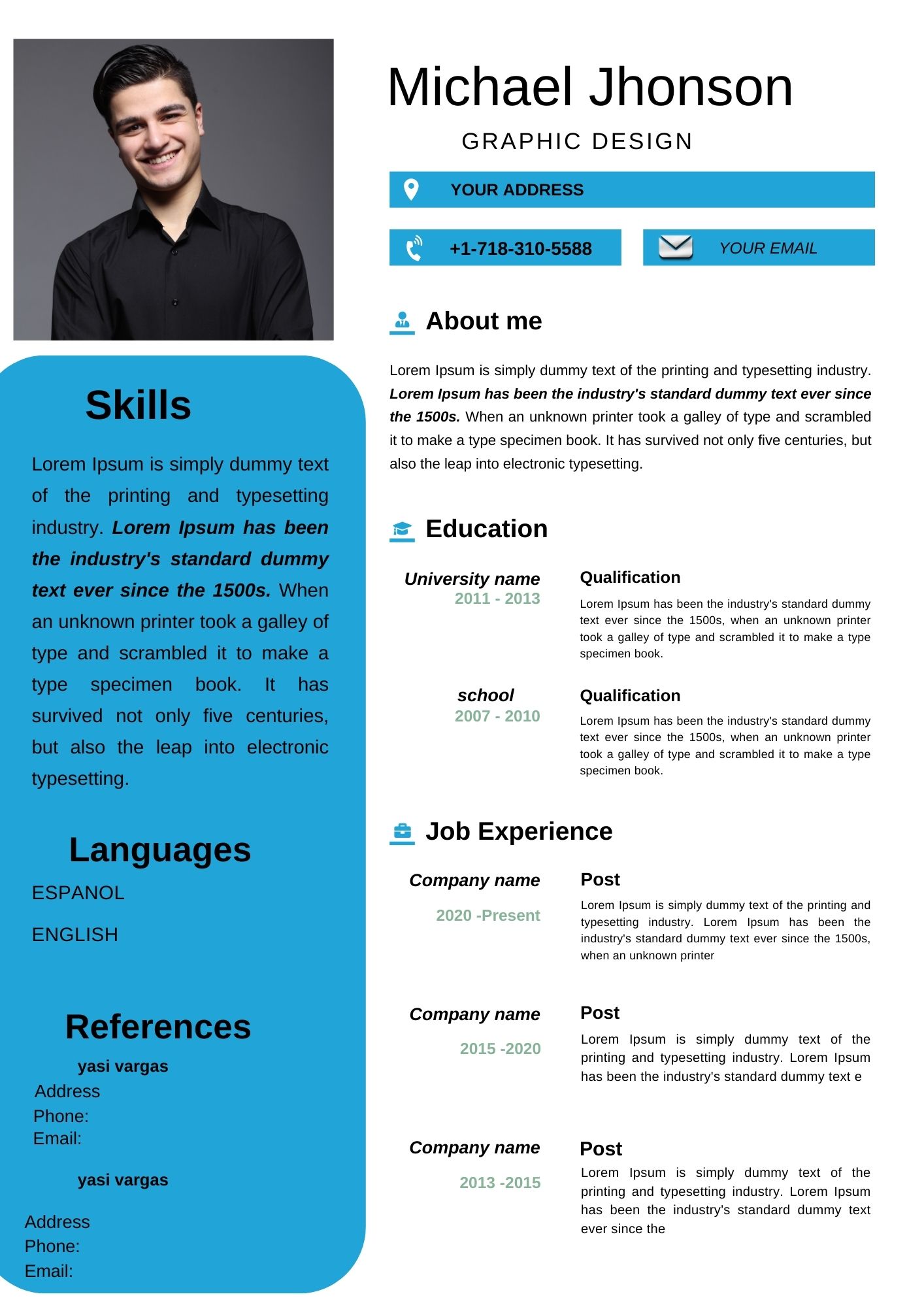
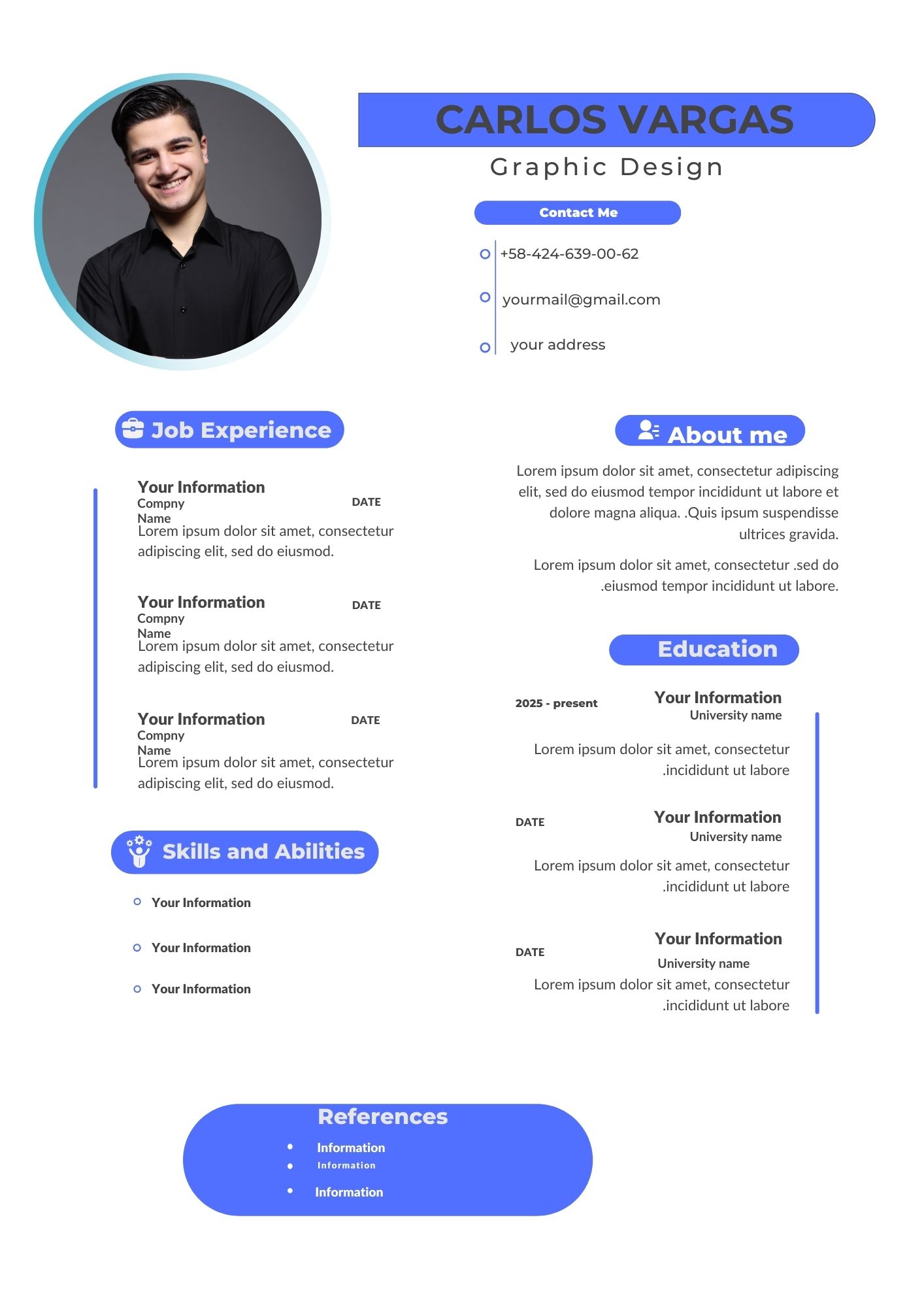
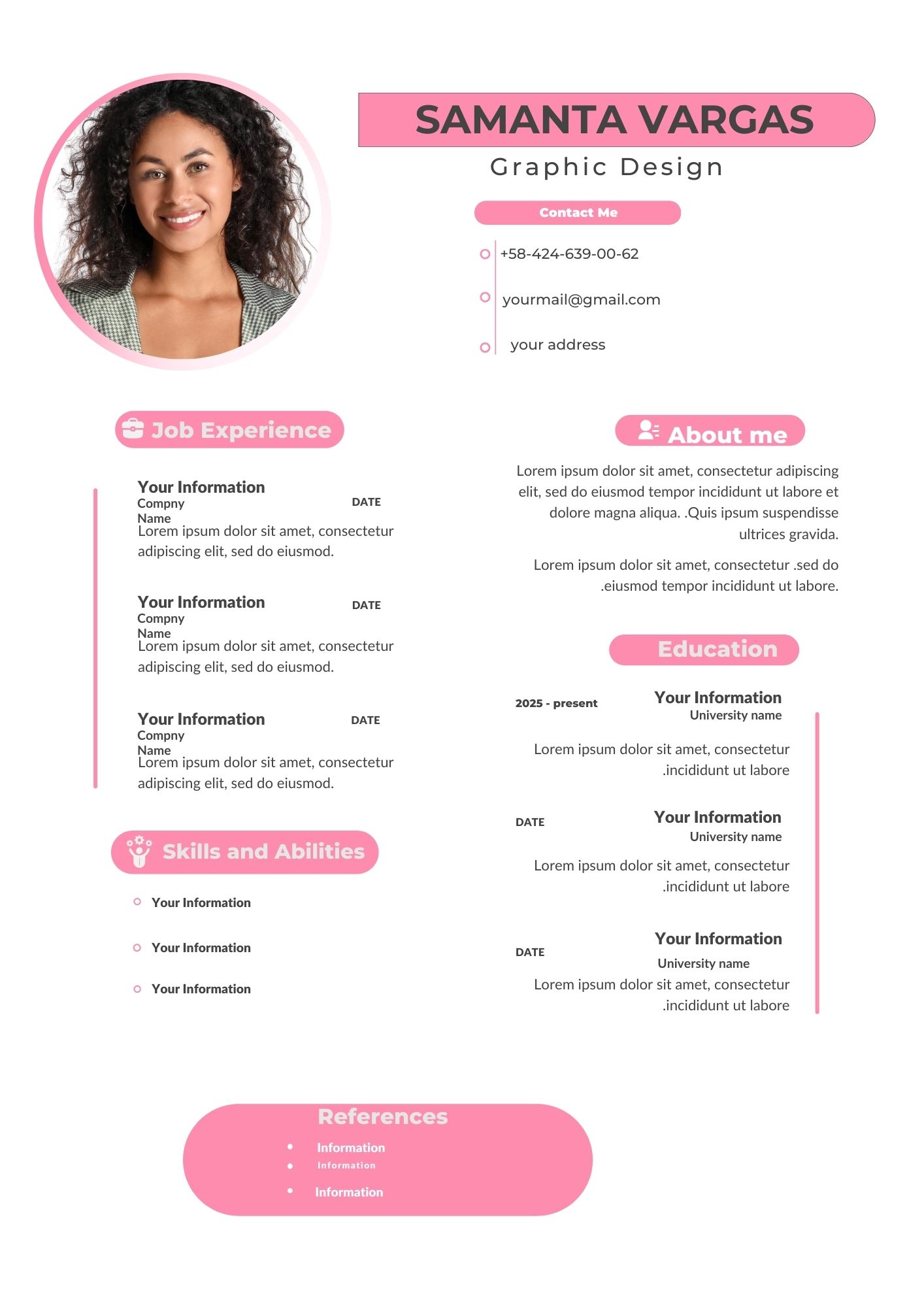
Creating a standout resume is essential for any job seeker. With Canva’s user-friendly platform and professionally designed templates, you can craft a compelling resume that showcases your skills and experience. This article will guide you through the process of making a resume in Canva, highlighting the benefits of using an editable template.
Why Choose a Canva Editable Template?
Canva’s editable templates offer numerous advantages for resume creation:
- Ease of Use: Canva’s drag-and-drop interface makes it simple to customize your resume, even with no design experience.
- Professional Designs: Choose from a wide variety of professionally designed templates to create a polished and modern resume.
- Customization: Easily personalize your template with your own information, fonts, colors, and images.
- Versatility: Canva templates are suitable for both printing and digital sharing, giving you flexibility in your job search.
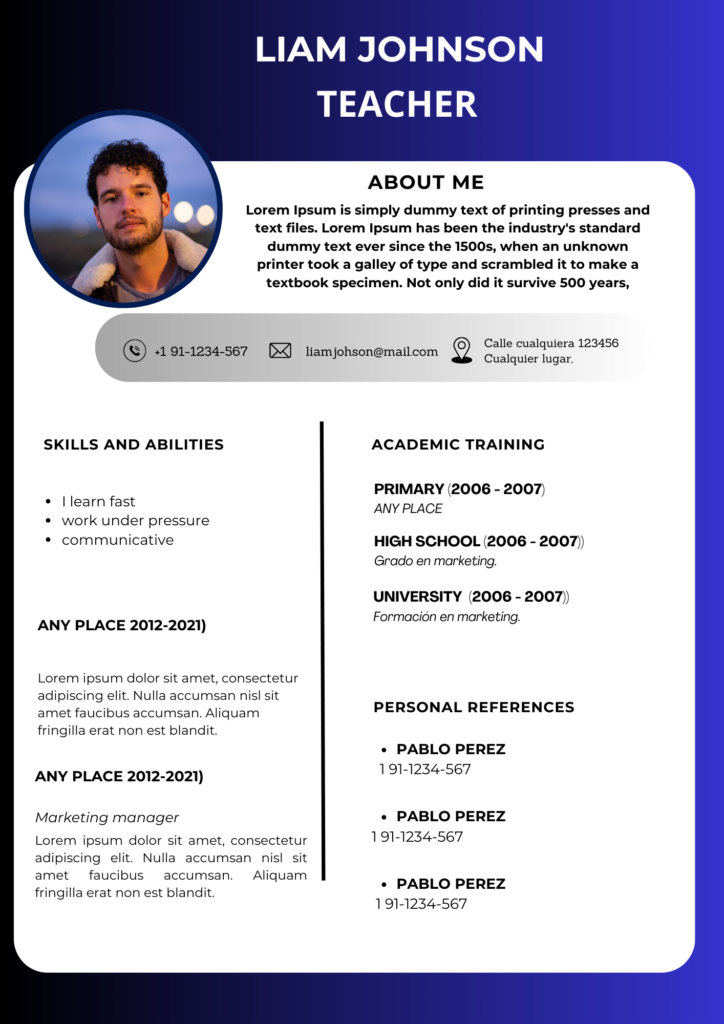
Key Features of This Canva Template
This Canva template includes the following features to help you create a top-notch resume:
- Clear Sections: Well-defined sections for your contact information, summary/objective, work experience, education, skills, and more.
- Modern Layout: A clean and contemporary layout that is visually appealing and easy to read.
- Customizable Elements: Easily change fonts, colors, and spacing to match your personal style and preferences.
- Print-Ready: The template is formatted for easy printing on standard paper sizes.
How to Customize Your Template
Follow these simple steps to personalize your Canva template:
- Select the File: Choose the Canva template file that you want to use.
- Open and Edit: Open the template in Canva and begin customizing it with your own information. Use the drag-and-drop interface to add, remove, or rearrange elements as needed.
- Save, Share, or Print: Once you’re happy with your resume, save it in your preferred format (PDF, JPG, PNG). You can then share it digitally or print it out for in-person applications.
Tips for Creating a Winning Resume
- Keep it Concise: Aim for a one-page resume, especially if you have less than 10 years of experience.
- Highlight Your Achievements: Focus on your accomplishments and quantify your results whenever possible.
- Use Action Verbs: Start your bullet points with strong action verbs to make your experience stand out.
- Proofread Carefully: Ensure your resume is free of any typos or grammatical errors.
Frequently Asked Questions
- Q: Do I need a Canva account to use these templates?
- A: Yes, you will need a Canva account (free or paid) to access and edit the templates.
- Q: Can I use these templates for any type of job?
- A: Yes, these templates are versatile and can be adapted for various industries and job types.
- Q: What file format should I save my resume in?
- A: PDF is generally the preferred format for sharing resumes, as it preserves formatting across different devices.